Keyboard
When you need lots of buttons in your project, you can soon run out of digital pins.
The keyboard connector allows you to connect multiple buttons to a single analogue pin.
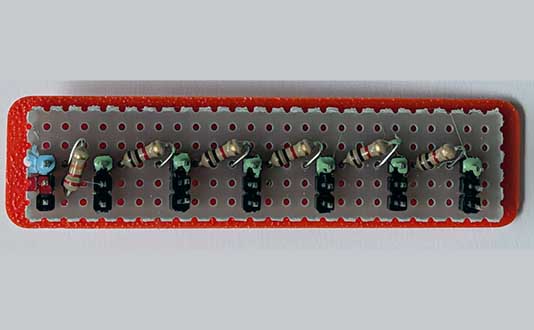
Wiring
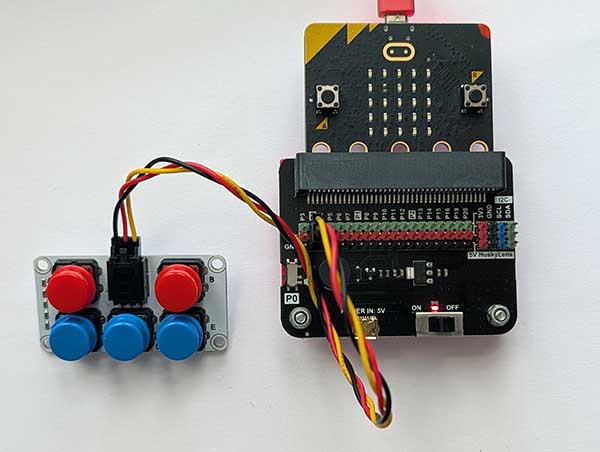
Use a GVS cable to connect the keyboard connector to an analogy pin. The GVS cable has 3 wires, blue, red and black:
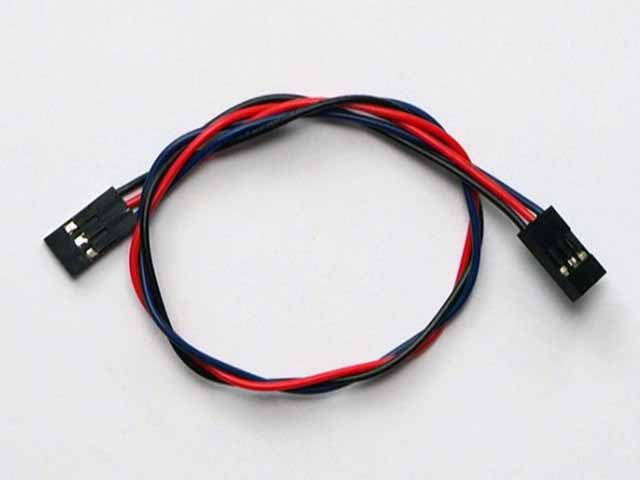
Connect up as follows, using the Edge Connector or Motor Controller board:
| Potentiometer | Microbit |
|---|---|
| 3-pin connector | P0 3-pin connector |
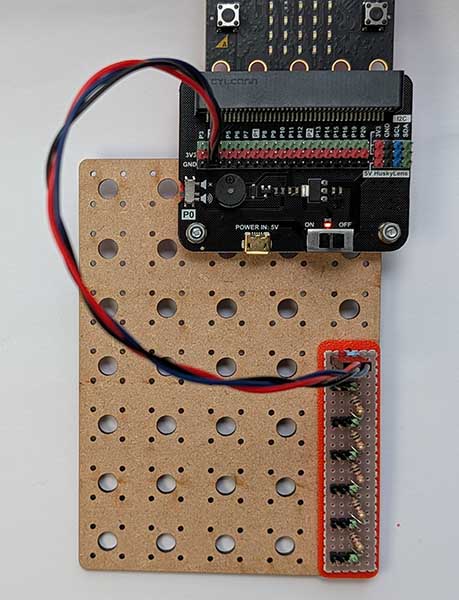
Connect the blue wire to the blue pin.
You don't have to use pin P0. You can use any analogue pin. Just remember to adjust your code accordingly.
Then connect buttons to the keyboard connector. The standard keyboard connector allows up to 6 buttons to be connected:
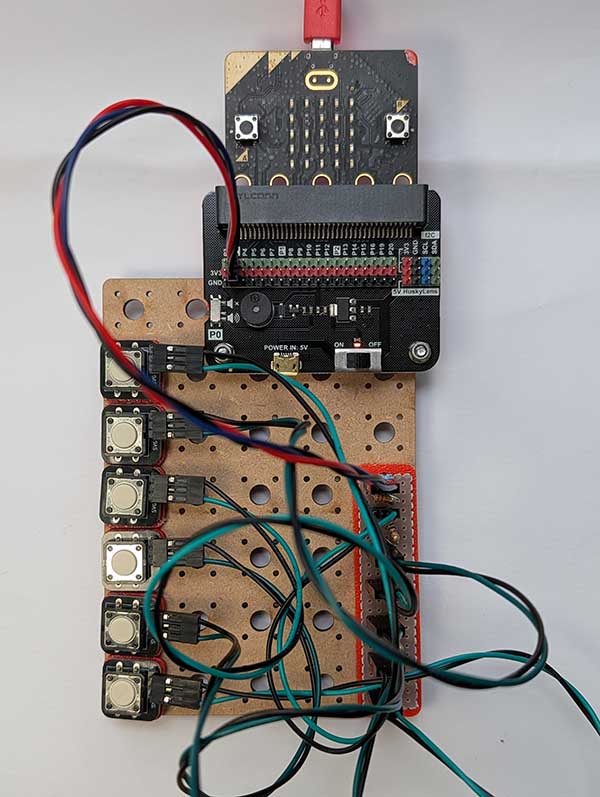
It's possible to make a keyboard connector with many more buttons. Up to 20 should work well. But this will require a lot of resistors and some soldering!
You can also use the 5-button ADKeypad from Elekfreaks. Connect it as follows:
Coding
Enter this code in forever:
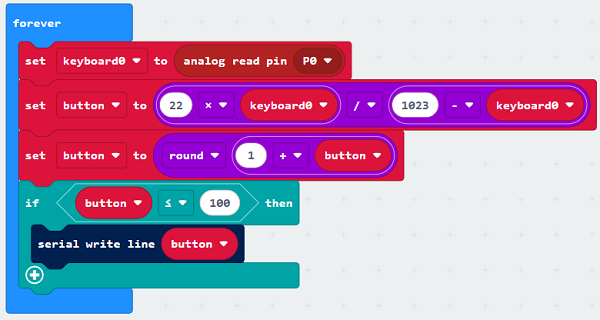
The Serial blocks can be found in Advanced.
Download the code to the microbit.
To see the data, click on Show data Device:
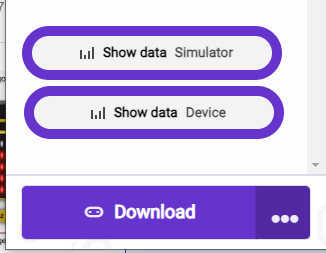
Press each button in turn. You should see the button number appear.
How it works
The keypad connector works using the concept of a voltage divider. The 3.3V of the Microbit is effectively split down 2 paths. Some current flows down the 22k resistor route and some flows through the series of 1k resistors, depending on which button is pressed:
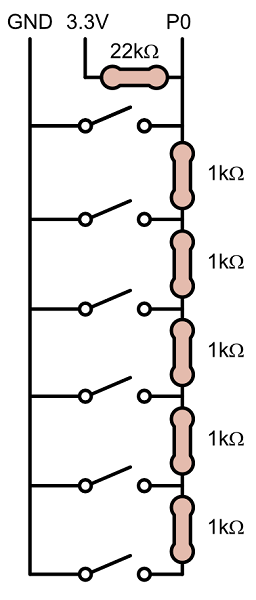
So the voltage read by the analog input varies depending on which button was pressed. This voltage can be expressed using the formula:
Vout = 3.3 x 1000n /(22000 + 1000n)
where n is the button position: 0, 1, 2, ...
The reading on the analogue pin, P0, is then:
P0 = 1023 x Vout / 3.3
So, when we read the value of P0, we can convert it back to n using:
n = P0 x 22000 / (1023-P0) / 1000
Or more simply:
n = P0 x 22 / (1023-P0)
We can add 1 to turn n into a button value: 1, 2, 3, etc. This gives us the code above.
The following table summarises the values:
| Button | n | Total series resistance | P0 voltage | P0 value (0–1023) |
|---|---|---|---|---|
| Button 1 | 0 | 0 kΩ | 0 V | 0 |
| Button 2 | 1 | 1 kΩ | 0.143 V | 44 |
| Button 3 | 2 | 2 kΩ | 0.275 V | 85 |
| Button 4 | 3 | 3 kΩ | 0.396 V | 123 |
| Button 5 | 4 | 4 kΩ | 0.508 V | 157 |
| Button 6 | 5 | 5 kΩ | 0.611 V | 189 |
Project Idea
Using some simple maths, compute a tone to play a different note when different keys are pressed. This will make a simple piano keyboard:

Tones correspond to different sound frequencies. You can find out more here: